 UgaRef
 · Customer guide
Good businesses nearby, with a deal that's actually yours.
Restaurants, salons, florists, renovation, heating and cooling and more — pick a category, choose a business, and show a live code when you pay. This guide follows Meiling through one week with UgaRef, step by step.
Scan with your phone camera to sign up.
Sign up nowugaref.app/register
Chapter 1 · Open UgaRef
Everything starts on one screen
User storyAs a customer, I want to see every kind of business in one app, so that I don't need a different app for each one.
Meiling opens ugaref.app on her phone. There is nothing to install: it works in the browser, and she can add it to her home screen like an app.
- 1
Open ugaref.app
The home screen shows eight categories — fashion, food, home, getting around, leisure, learning, health and travel — and a shelf from the UgaRef shop.
TipOn iPhone: Share → Add to Home Screen. On Android: the install prompt, or ⋮ → Install app.
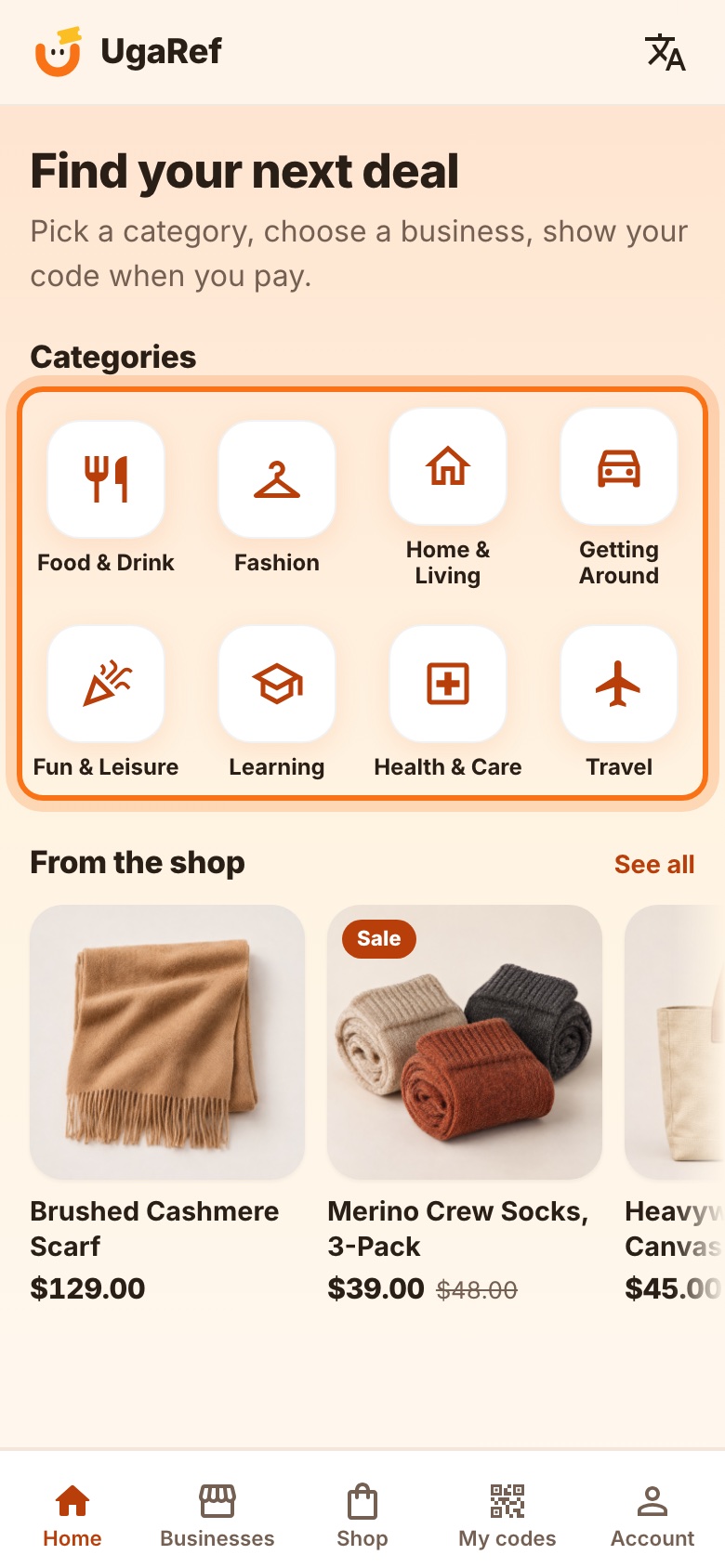
Fig. 1The home screen: categories first, then the shop. - 2
Choose your language
The 文A icon at the top switches between English and 中文. UgaRef remembers the choice on this phone.
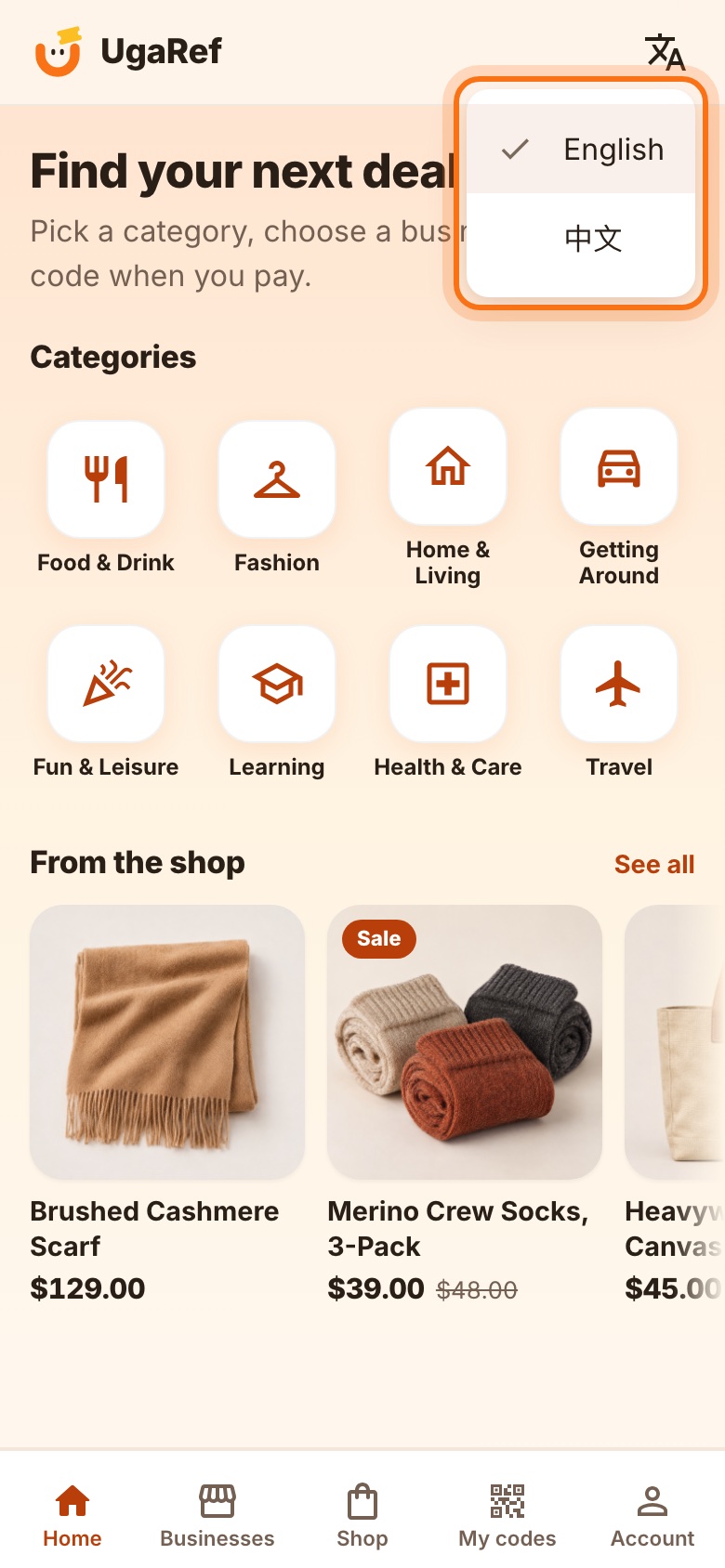
Fig. 2One tap switches the whole app to Chinese.
Chapter 2 · Find a business
Browse by category, decide with the deal in view
User storyAs a customer, I want to see each business's deal before I choose, so that I know exactly what I'll get.
It's Saturday. Meiling taps Food & Drink. Every business shows its deals on the card, so she can compare without opening each one.
- 1
Tap a category — or open Businesses
Businesses shows every category as a tab you can swipe through; tapping a category on Home opens the same page. Each business shows its photo, area and deals — with a Get code button right on the card. Back from a business returns you to the same tab and spot.
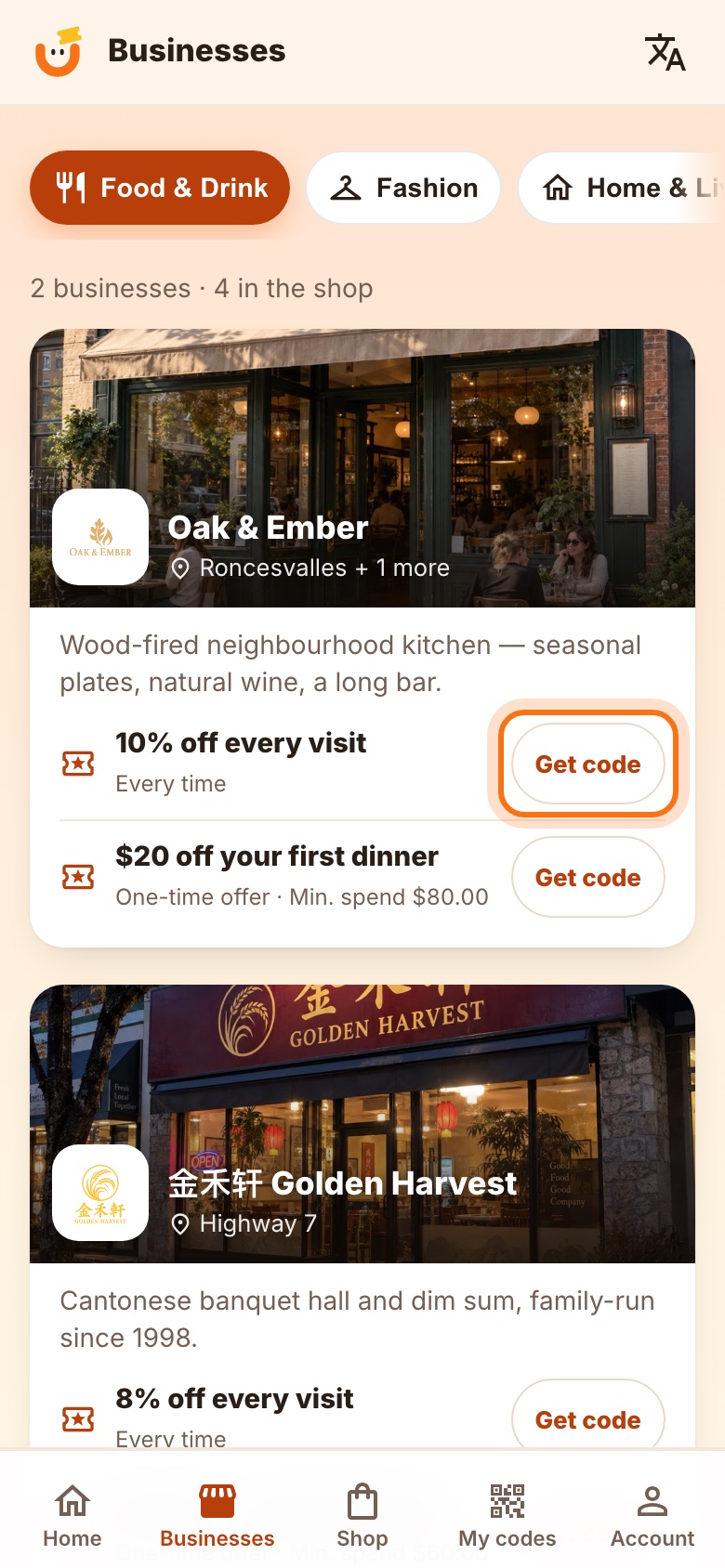
Fig. 3Businesses: categories as tabs, deals right on each card. - 2
Open a business
The business page opens with photos you can swipe through, then a short description, its deals, its branches with addresses, and a phone number.
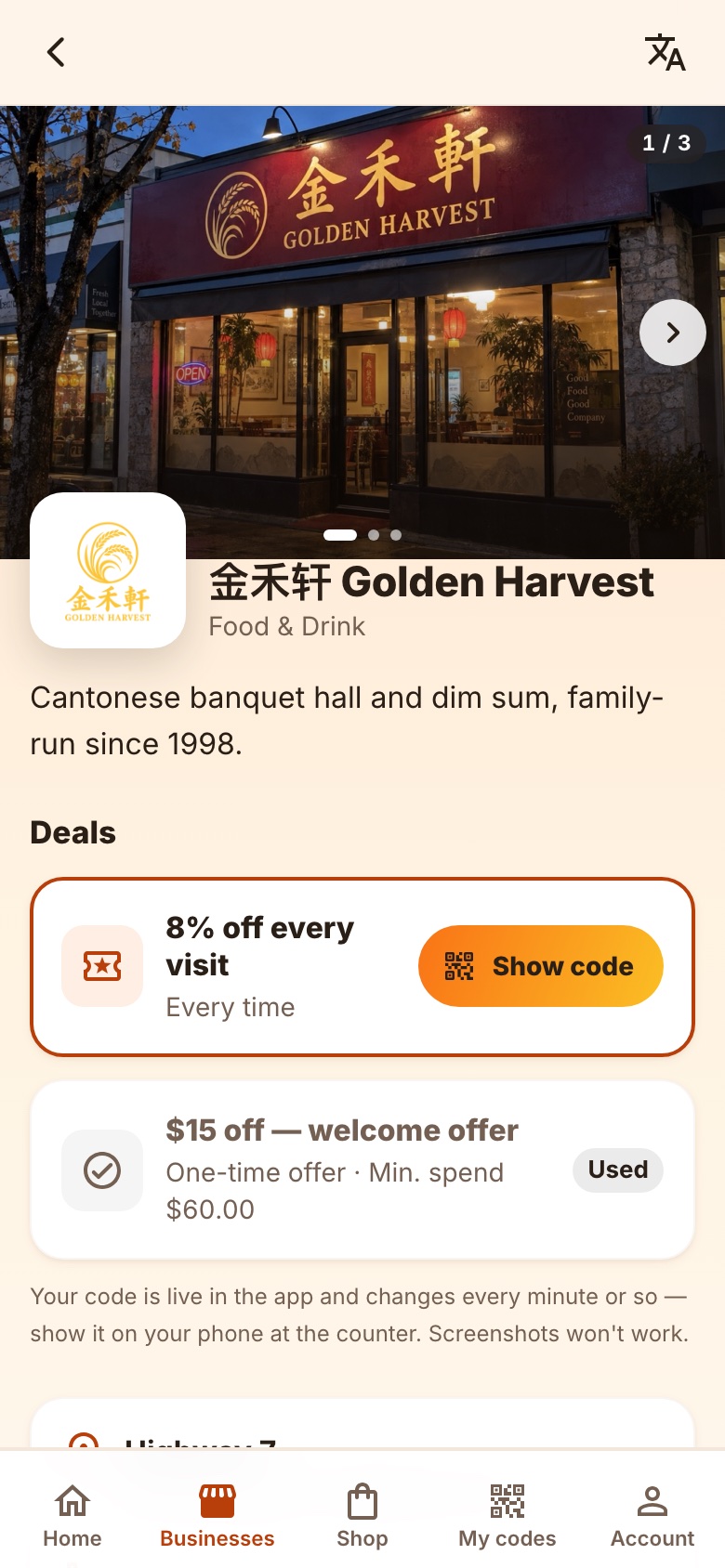
Fig. 4Golden Harvest's page. - 3
Read the deals
Each deal says how often you can use it — every visit, or once — and any minimum spend. A deal you've used up is marked Used.
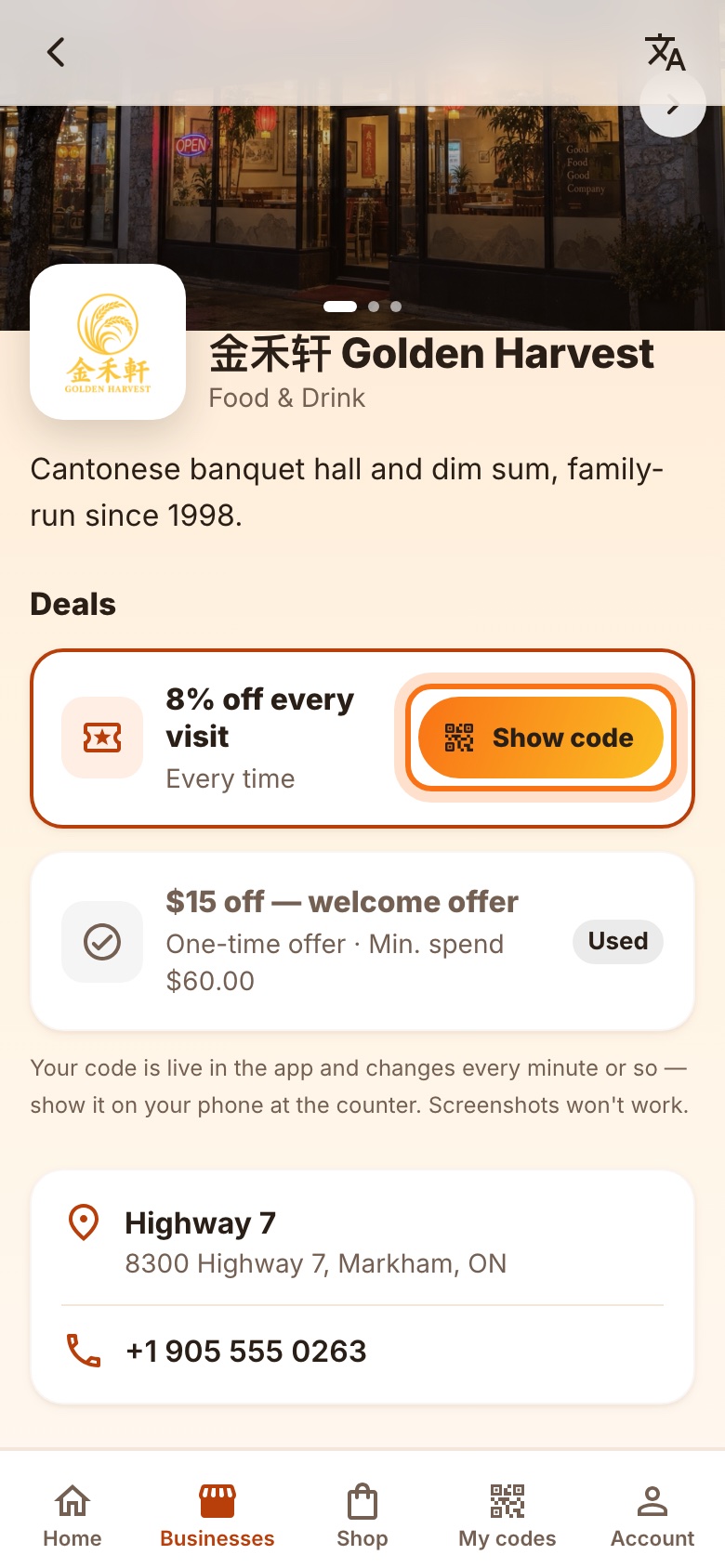
Fig. 5“8% off every visit” and a one-time welcome offer she has already used.
Chapter 3 · Get your code
A code that only works live
User storyAs a customer, I want a code that only works in my own app, so that nobody can use my deal with a screenshot.
Meiling taps Get code. The first time, UgaRef asks her to create an account — it takes a minute, and she stays signed in for a year.
- 1
Create your account (first time only)
Name, phone, email and a password. UgaRef emails a 4-digit code to confirm the address. Already have an account? Tap “I already have an account”.
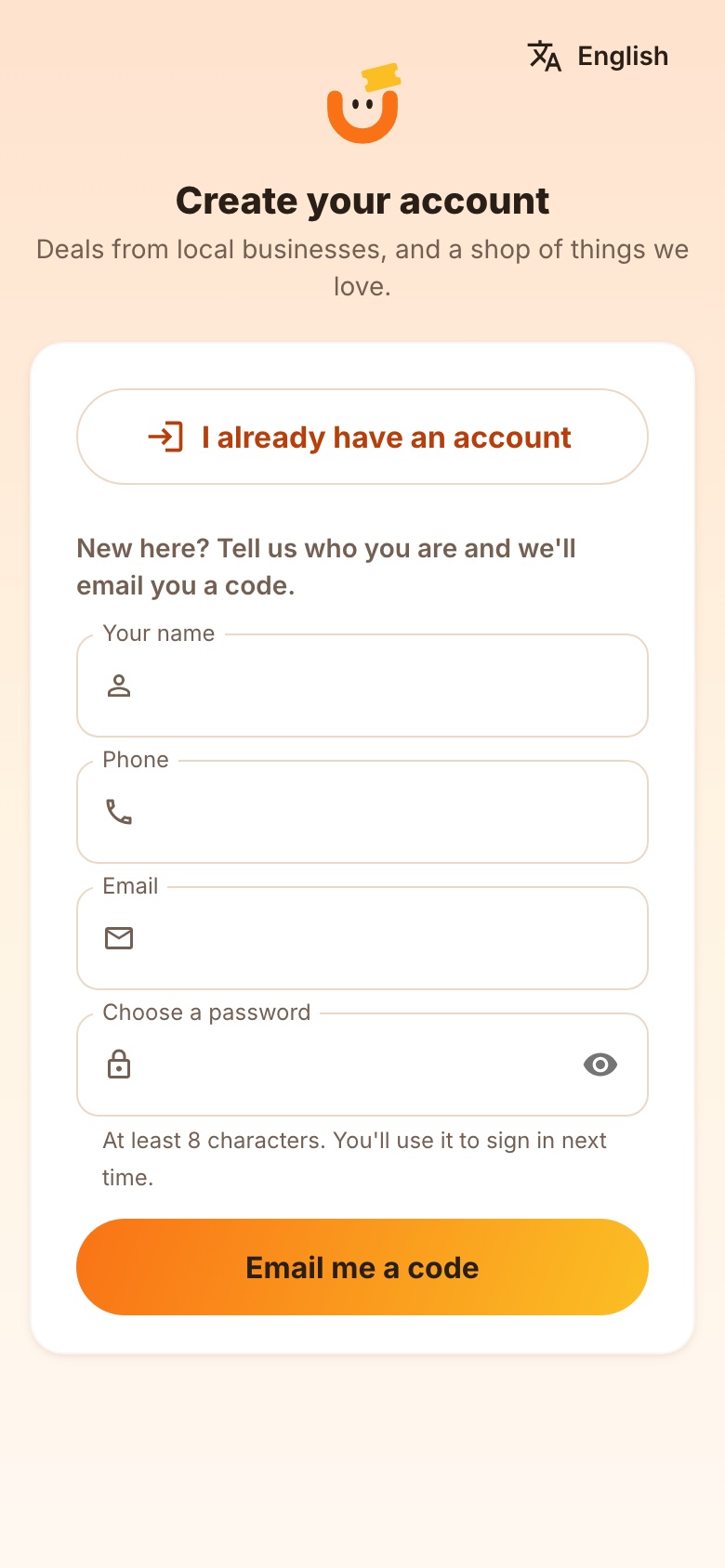
Fig. 6Sign-up: four fields and a code from your email. - 2
Show the live code at the counter
Your code appears as a QR with an 8-character code under it. It refreshes on its own every few seconds and each one expires in about 90 seconds — so show the screen itself, not a screenshot.
TipNo signal? The code hides itself until you reconnect, rather than showing one that won't work.
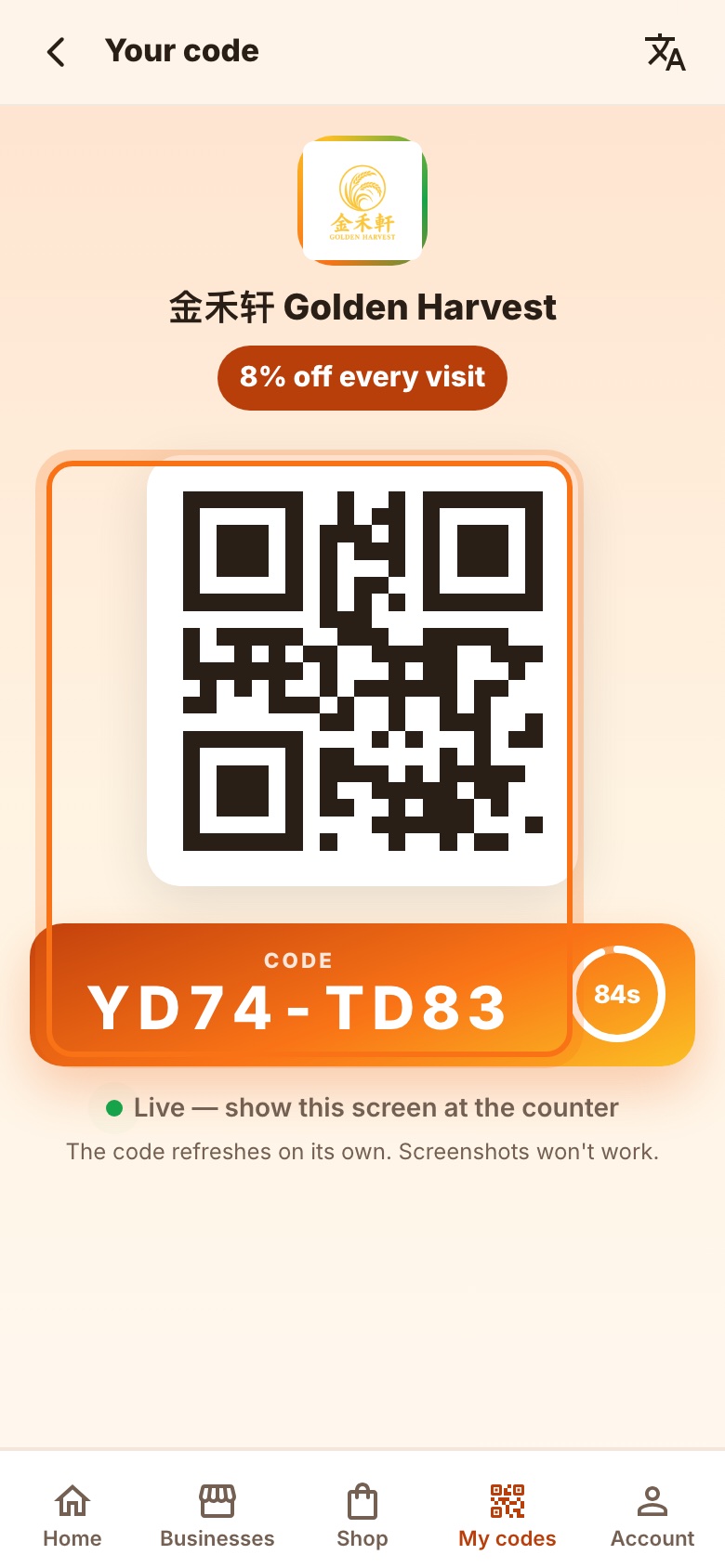
Fig. 7The live code, with its countdown ring.
Chapter 4 · At the counter
Scan, pay, done
User storyAs a customer, I want the discount applied without arguing about coupons, so that paying takes seconds.
At the till, the cashier scans Meiling's phone, types the bill, and the discount is worked out for both of them. Her screen changes the moment it's done.

- 1
Your screen confirms it
“Used — thanks!” with what you saved and when. Nothing else to do.
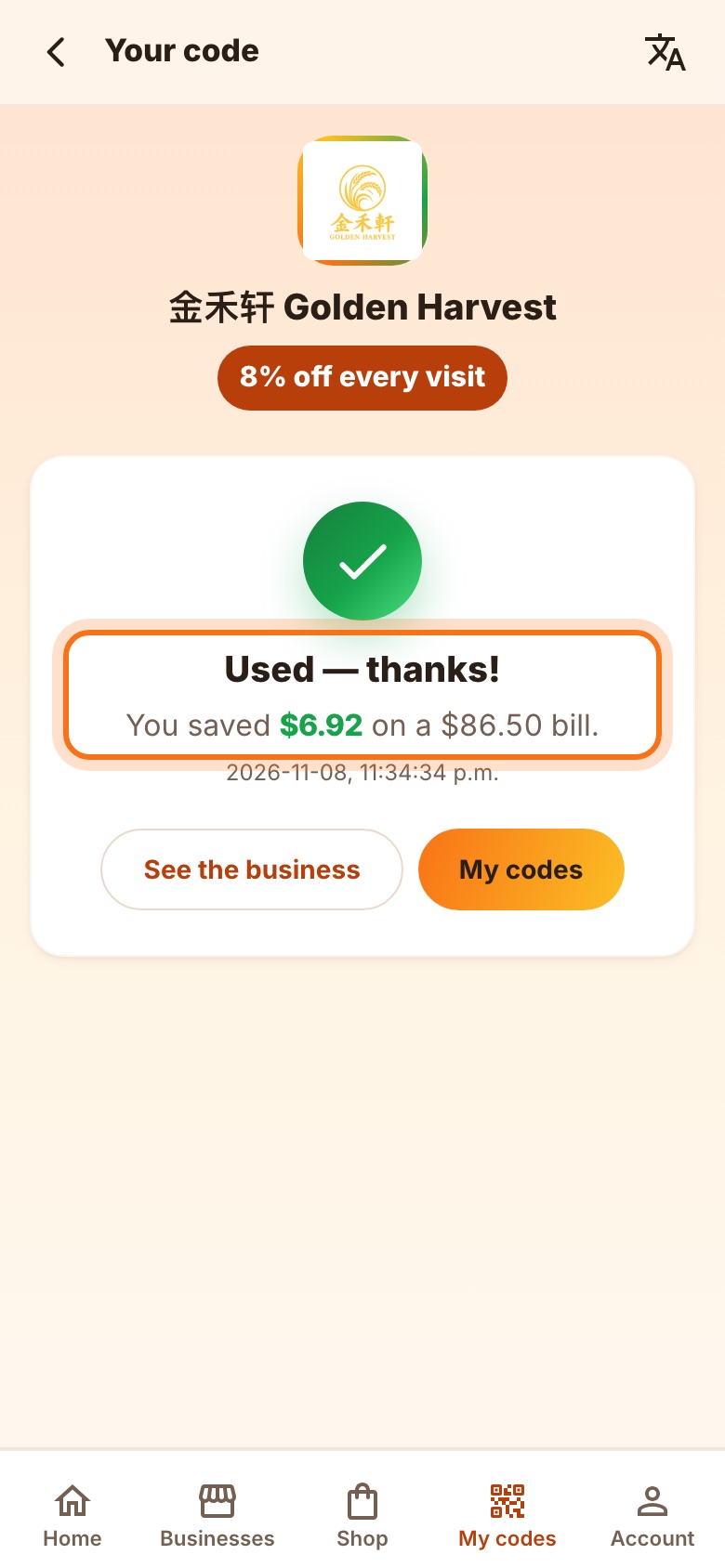
Fig. 9Saved $6.92 on an $86.50 bill. - 2
Everything in My codes
Codes ready to use sit at the top; underneath is your history and your total saving with UgaRef.
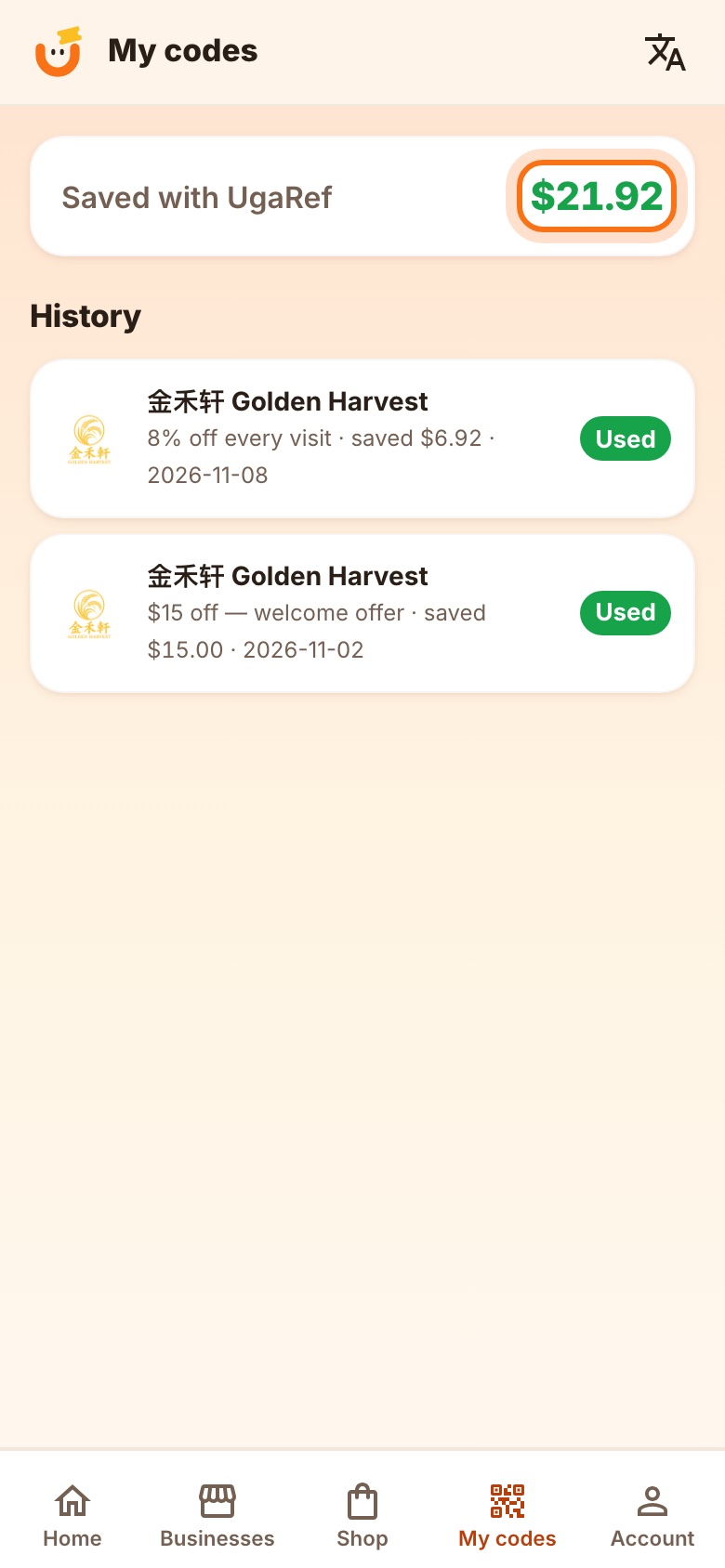
Fig. 10My codes: history and total saved.
Chapter 5 · The shop
Hand-picked things, delivered free or picked up
User storyAs a customer, I want to buy a few good things in the same app, so that I don't have to search five websites.
On Sunday, Meiling browses the UgaRef shop for a new kettle. Shipping is free across Canada, or she can pick it up.

- 1
Browse the shop
Filter by category. Prices show any saving against the previous price.
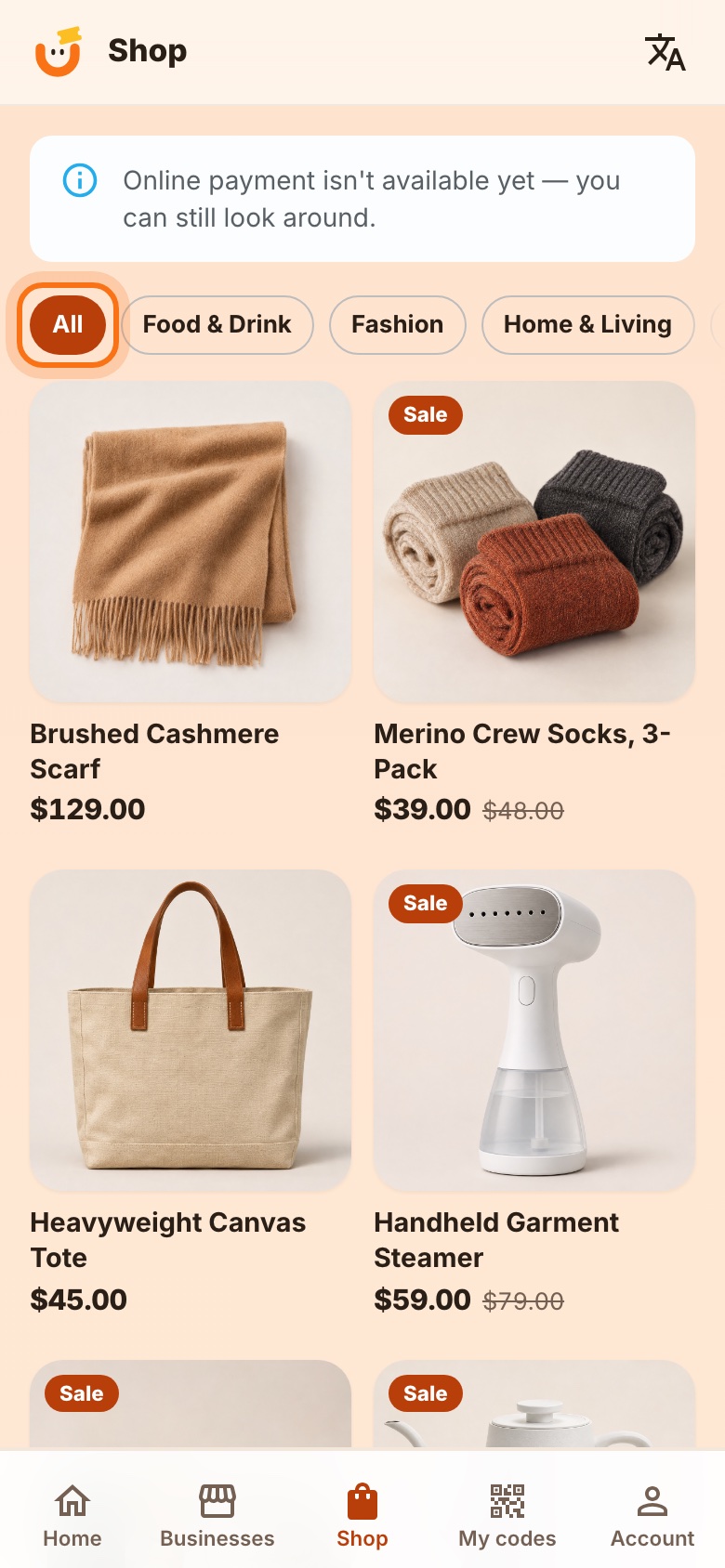
Fig. 12The shop, filtered by category. - 2
Look closely
Swipe through the photos, read the description and the specifications, and check delivery options and pickup points.
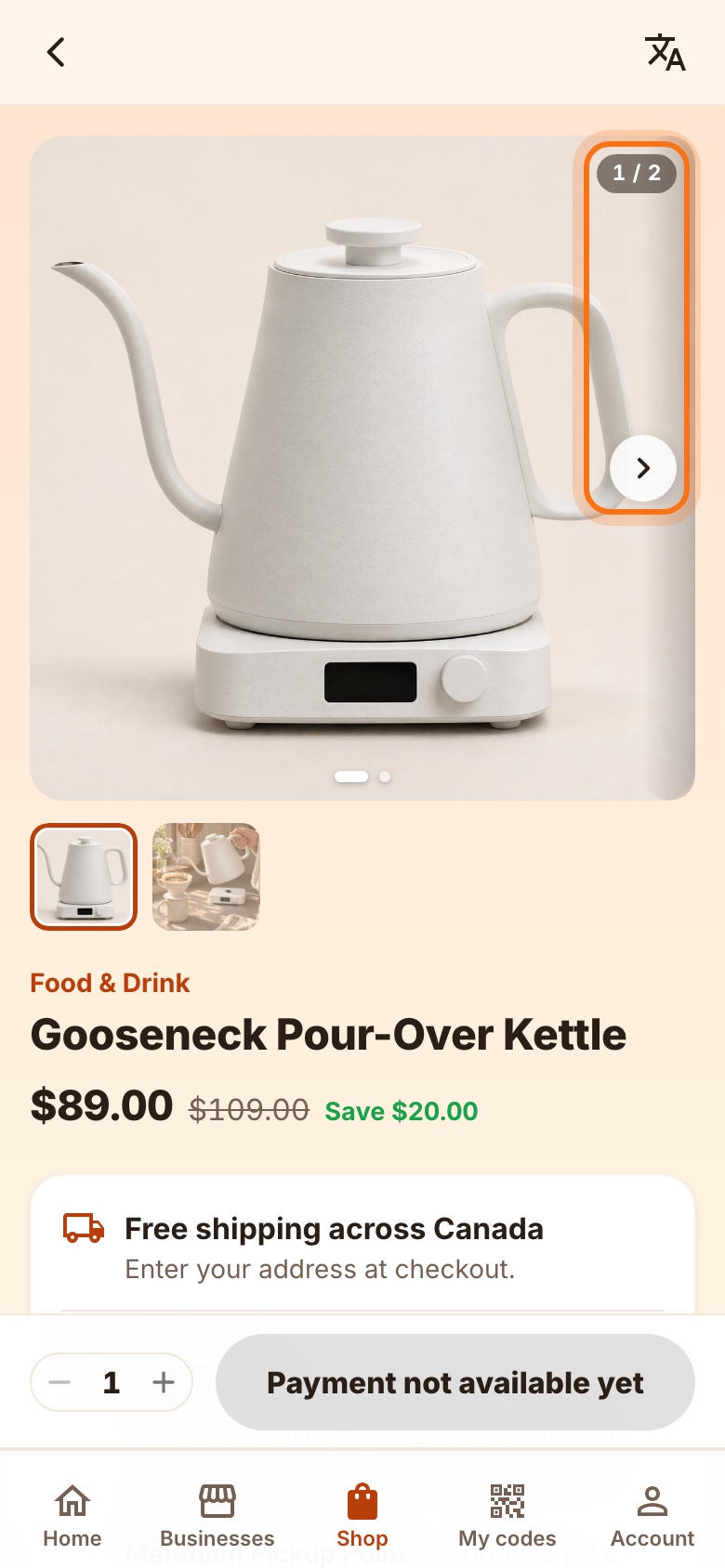
Fig. 13Product page: photos, price, delivery. - 3
Choose shipping or pickup
Enter a Canadian address, or choose a pickup point and its hours. Payment happens on Stripe's secure page — UgaRef never sees your card.
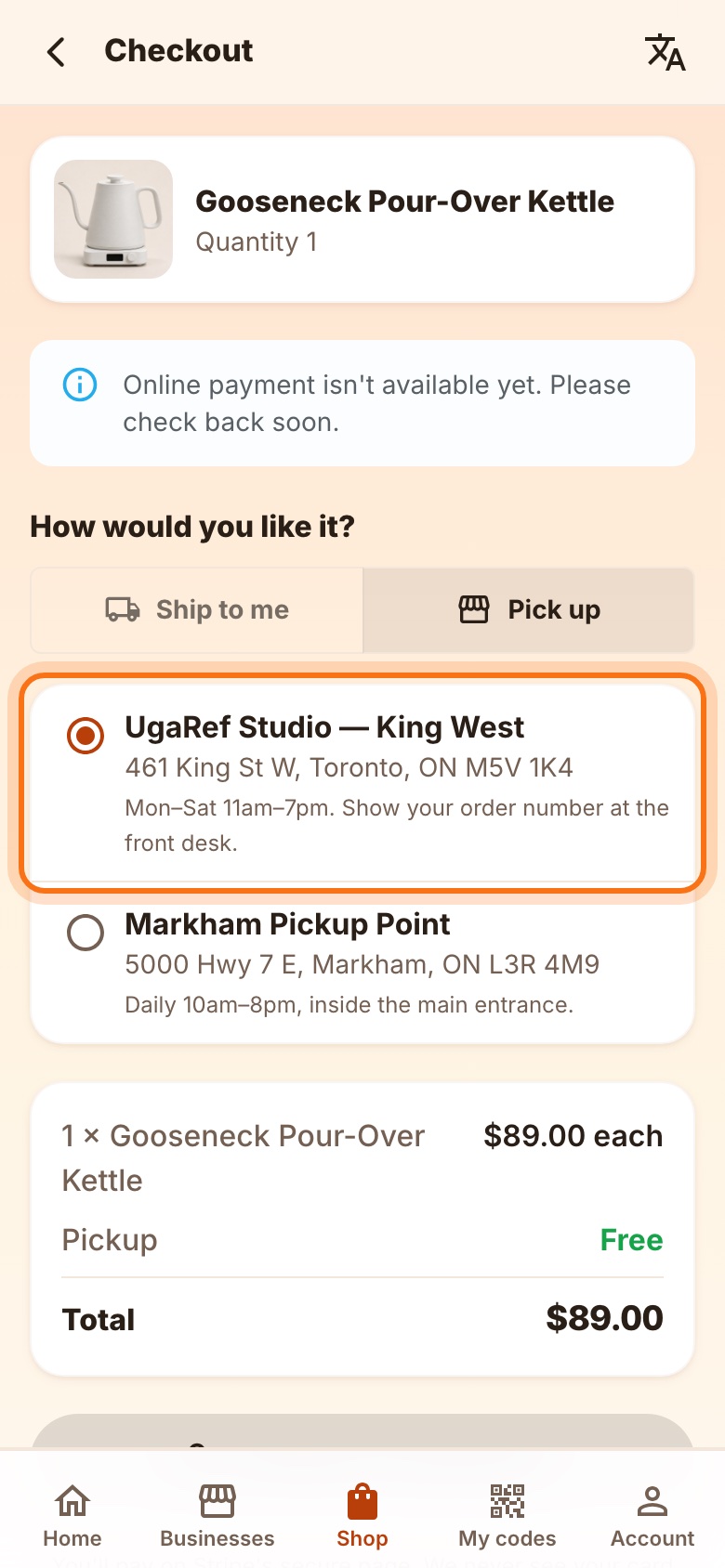
Fig. 14Checkout with pickup at UgaRef Studio. - 4
Follow your order
Each order shows its status — paid, shipped or picked up — with the address or pickup point.
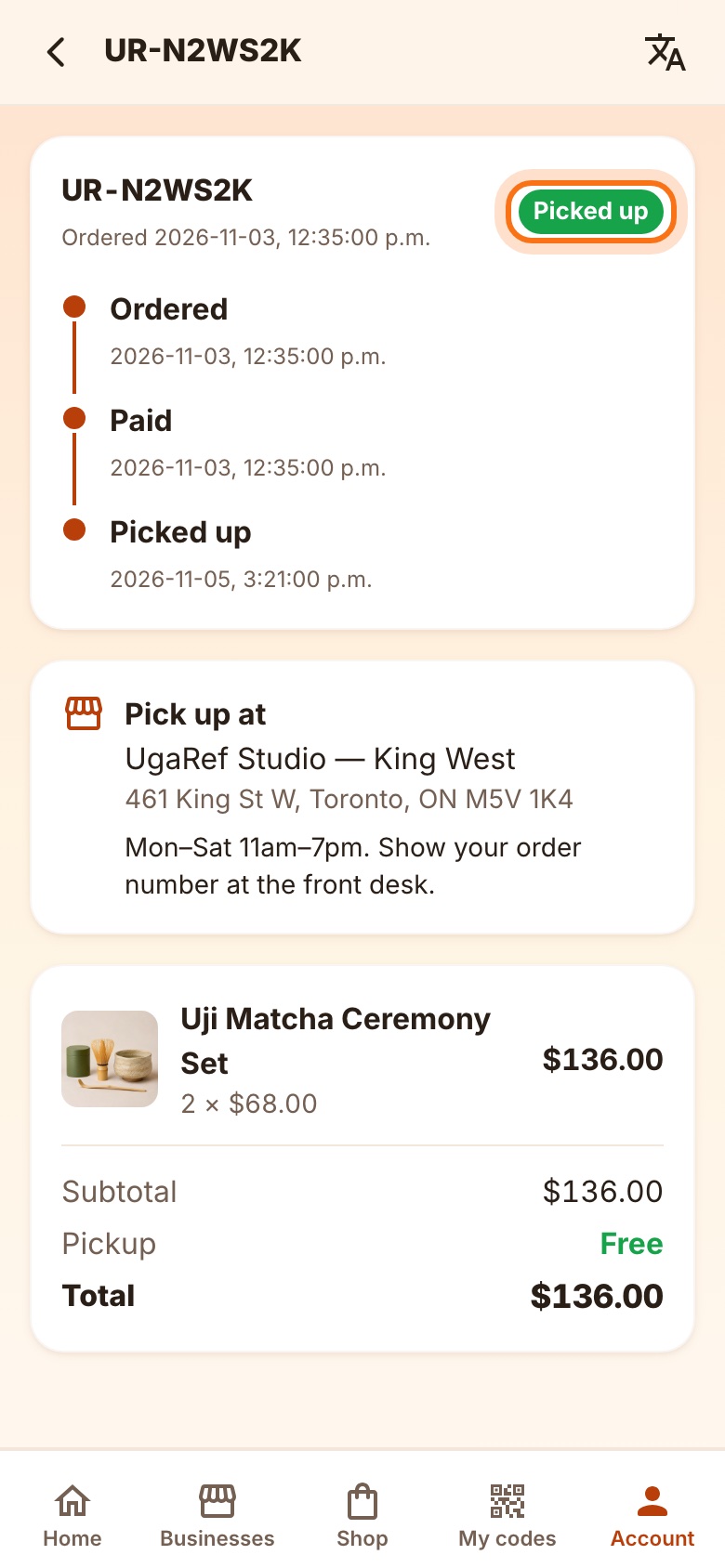
Fig. 15An order, from paid to picked up.
Questions
- Does UgaRef cost anything?
- No. Deals are offered by the businesses themselves; you only pay your bill, minus the discount.
- Why can't I send a friend my code?
- Codes change every minute and only work in the app of the person who took the deal. Your friend can take the same deal in their own app.
- I used a one-time deal. Can I use it again?
- No — that's what one-time means. Deals marked “every visit” can be taken again right after each use.
- Can I switch to Chinese?
- Yes, with the 文A icon at the top of any screen.
Join UgaRef — free, for life
Everyone who signs up in our first wave keeps UgaRef free for life. Scan the code with your phone camera, or tap the button, and you're in within a minute.
Sign up nowugaref.app/register